Encrypt email attachments using pdf
To improve information security, when you use email to transmit confidential or sensitive information, you should encrypt the attachment before sending it.
This article explains how to encrypt files:
1. Software tools: Use Adobe Acrobat. (This is a paid software. Please contact the administration and consultation division for related authorization)
2. How to make the file into a pdf file:
Here we take word as an example. Similar methods apply to other types of files.
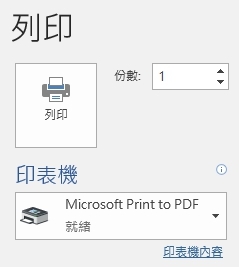
After selecting [File]>[Print] in word, select [Acrobat PDF] or [Microsoft Print To PDF] as the printer, then click [Print], and select the file storage location to generate a pdf file.
3.Encrypt pdf files
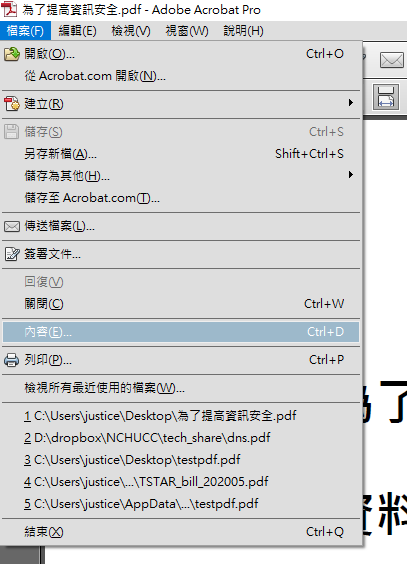
3.1With the pdf file open, click [File]>[Content]
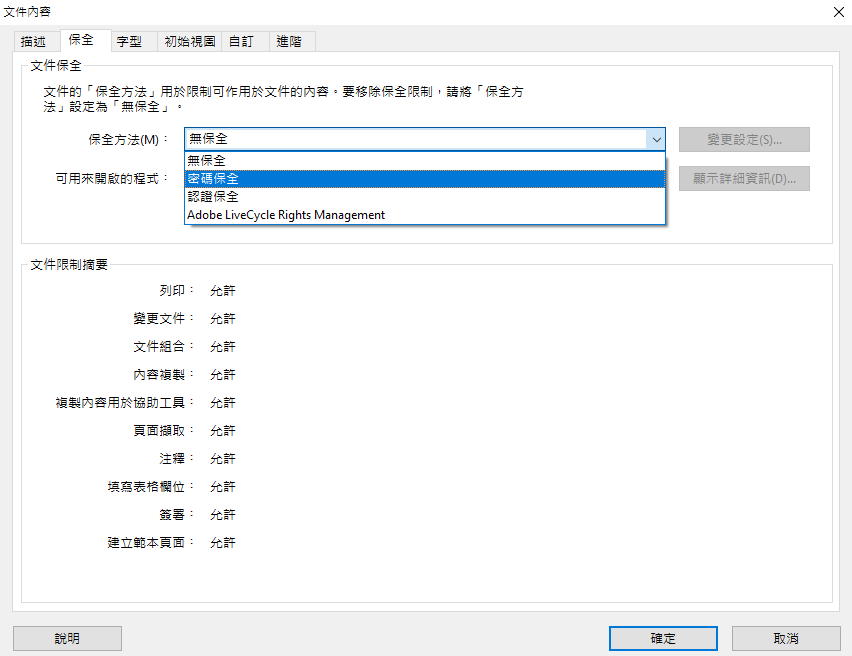
3.2 In the picture below, click the [Security] tab and select [Password Security] for [Security Method]
3.3 In the picture below, check [Require password to open file] and set your password in the [Password to open file] field.
It is recommended to select [Acrobat X and higher versions] in [Compatibility] to increase the AES key length and make it more secure.
Finally press the [OK] button.
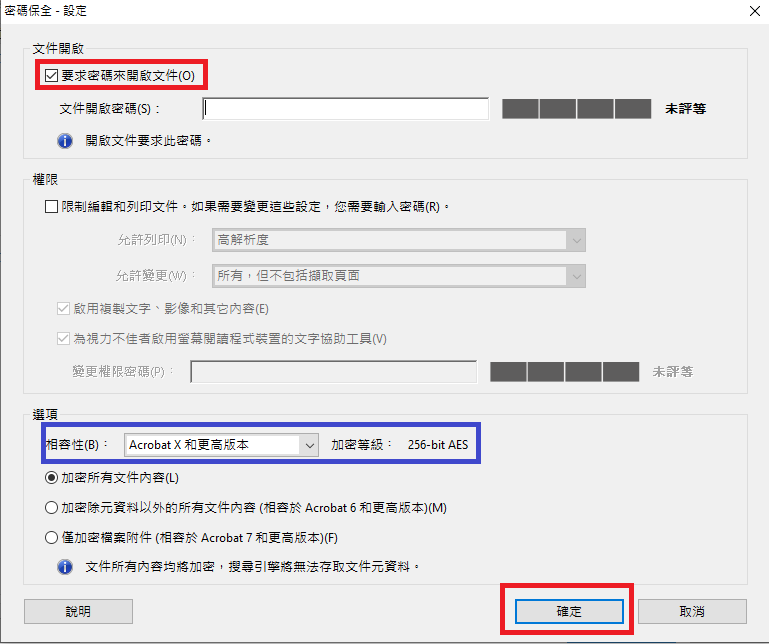
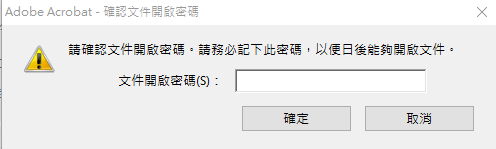
3.4 Then the following picture will appear. Enter the password you specified in the previous step again.
3.5 Then return to the picture below and click the [OK] button directly.
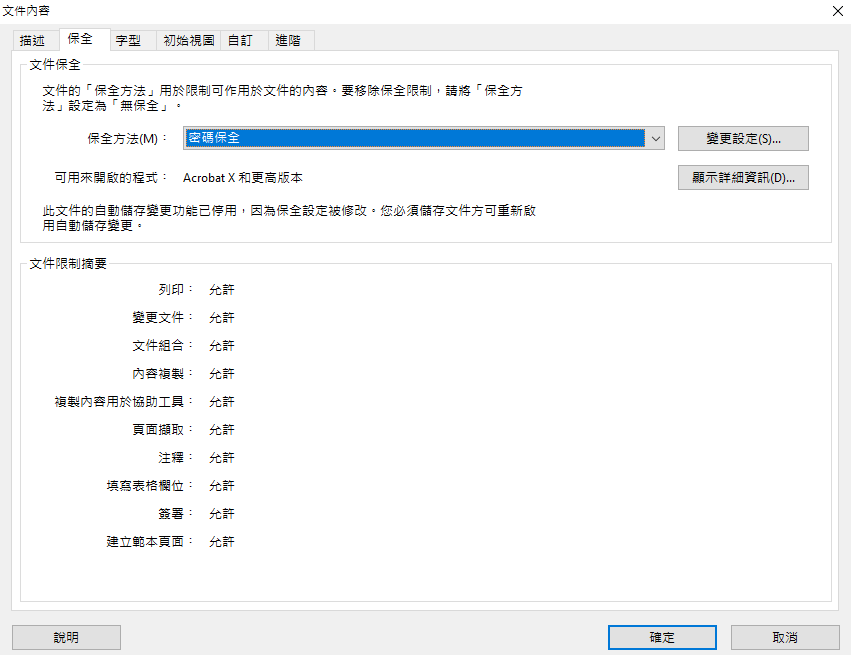
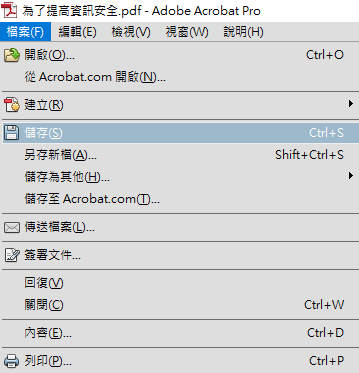
3.6 The last step is also the most important. You must go to [File]>[Save] for encryption to take effect.
After that, you can send the pdf file to the other party as an email attachment, and then use other communication channels to inform the other party of the set password.