How to prevent SSL VPN from Auto-Starting and Manually Start
SSL VPN is provided for users who need to access on-campus resources while off-campus. Recently, it has been observed that many users are using SSL VPN outside of these two scenarios, leading to VPN congestion, bandwidth wastage, and slower network connection speeds.
Please do not activate SSL VPN when off-campus unless it is necessary to use on-campus resources.
Our school's SSL VPN connection software uses Pulse Secure, which is set by default to auto-start each time the computer reboots. If you accidentally start it, it will automatically connect to the SSL VPN.
To avoid unnecessary use of SSL VPN, please follow the steps below to disable the auto-start of Pulse Secure at boot, and manually start it only when needed.
Steps to Prevent Pulse Secure from Auto-Starting
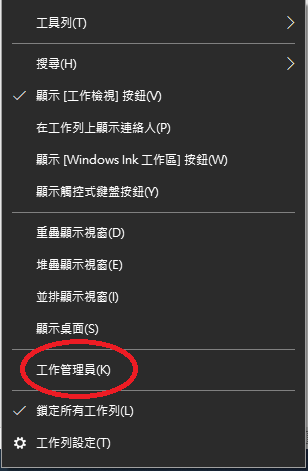
1.Right-click on the taskbar at the bottom of the screen and select "Task Manager".
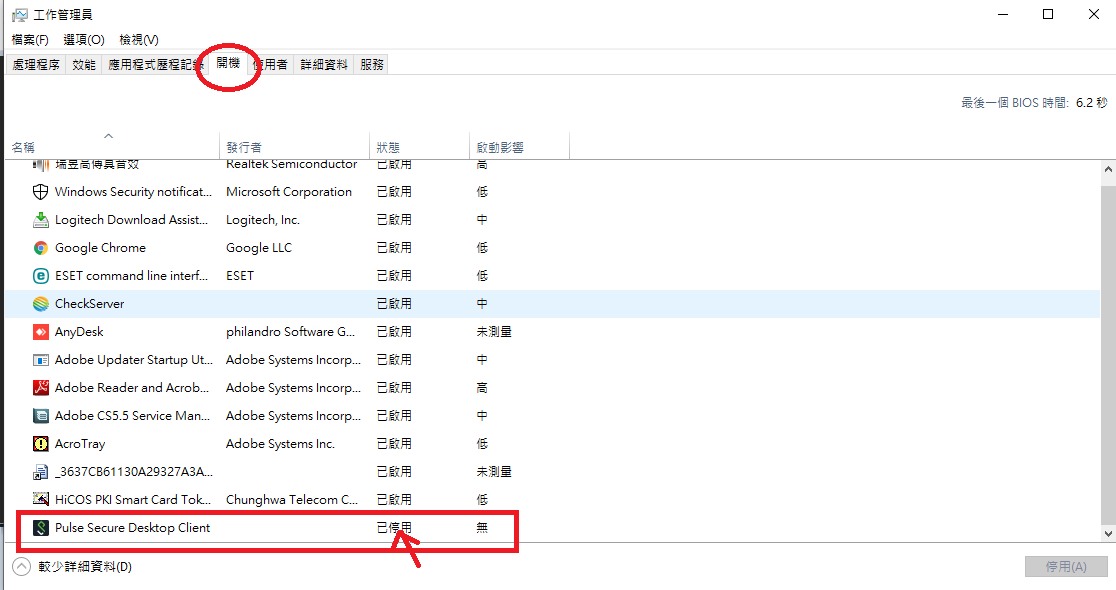
2.Select the "Startup" tab, find "Pulse Secure" and change its status to "Disabled".
How to Manually Start and Stop SSL VPN
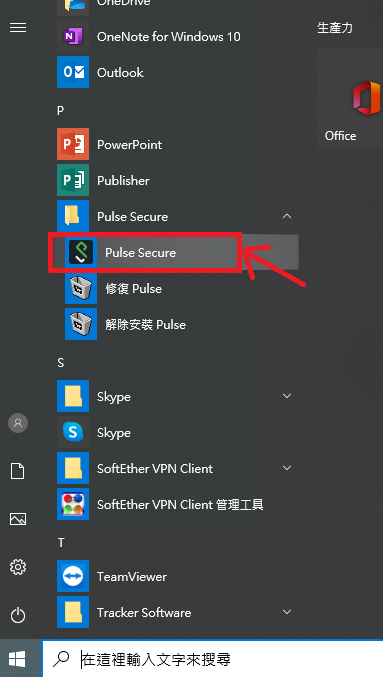
1. Move your mouse to the Pulse Secure icon on your desktop or in your system tray.
2. Enter your username and password when prompted.
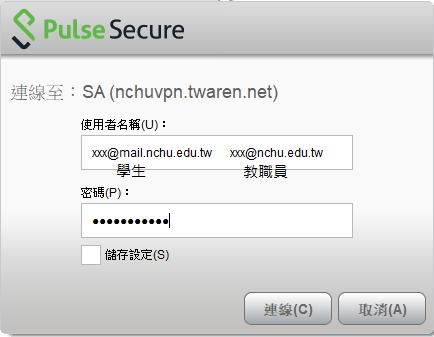
3. Click "Connect" to establish the connection.
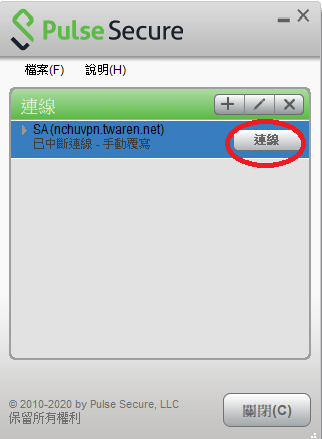
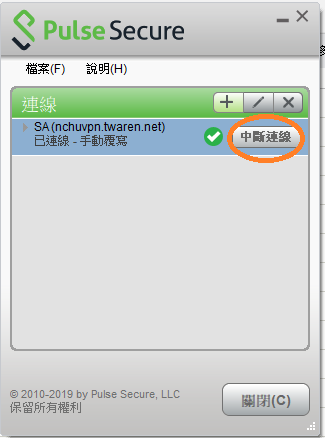
4. If you want to log out, please click 'Disconnect'.