


How to set up your Gmail app to receive school emails (mobile devices only)
Gmail will no longer support checking emails from third-party accounts through POP
Google Document:https://support.google.com/mail/answer/16604719?hl=en&sjid=6505800411038405120-NC
To access your school email in Gmail, you can use the mobile Gmail app to set it up, but this is only available for mobile devices.
1. Open Gmail APP

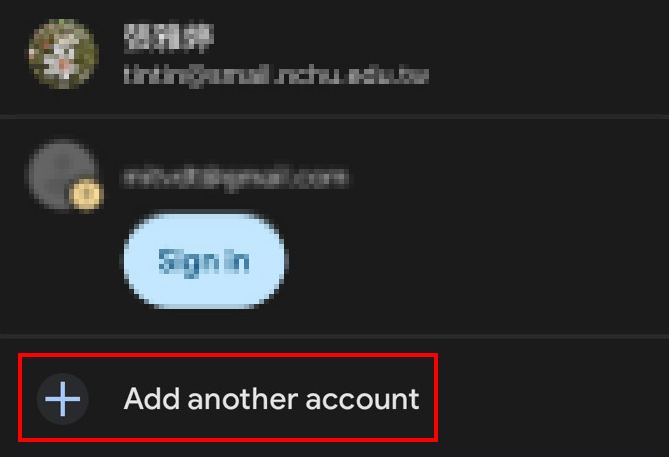
2. After clicking on the profile picture in the upper right corner, select "+ Add other account" and choose to use IMAP.
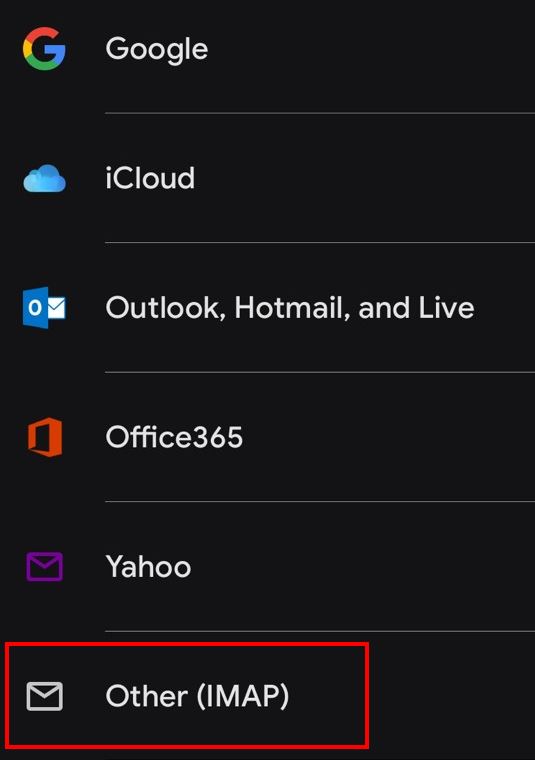
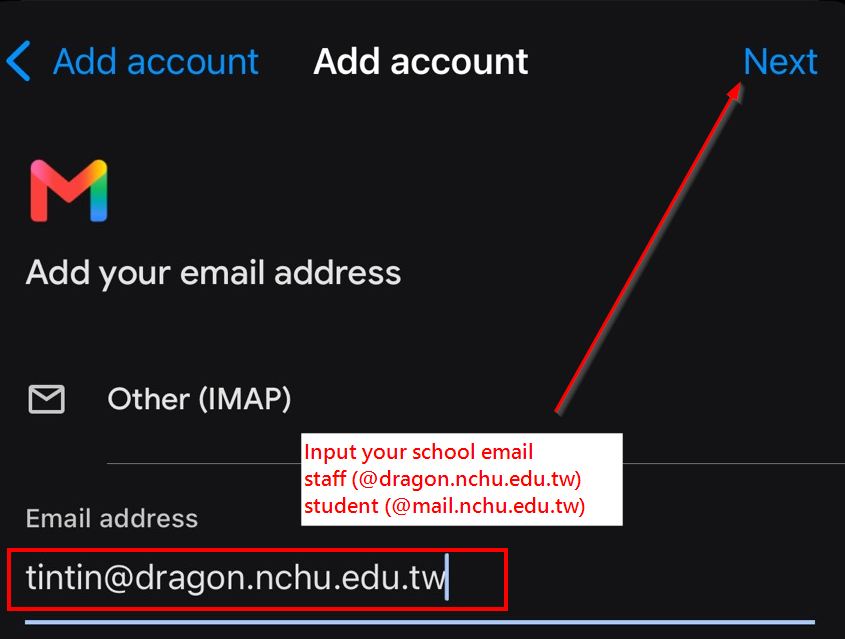
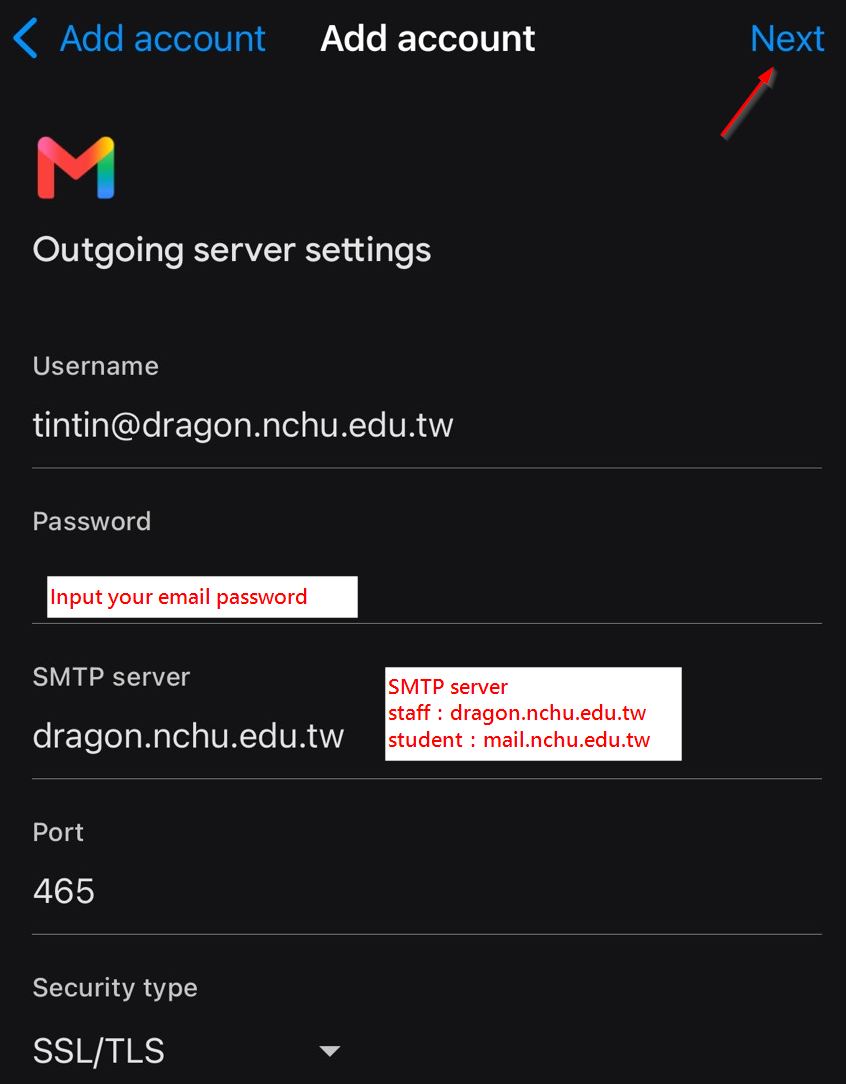
3. To add an account, simply follow the steps below.
Staff IMAP server and SMTP server:dragon.nchu.edu.tw
Student IMAP server and SMTP server:mail.nchu.edu.tw
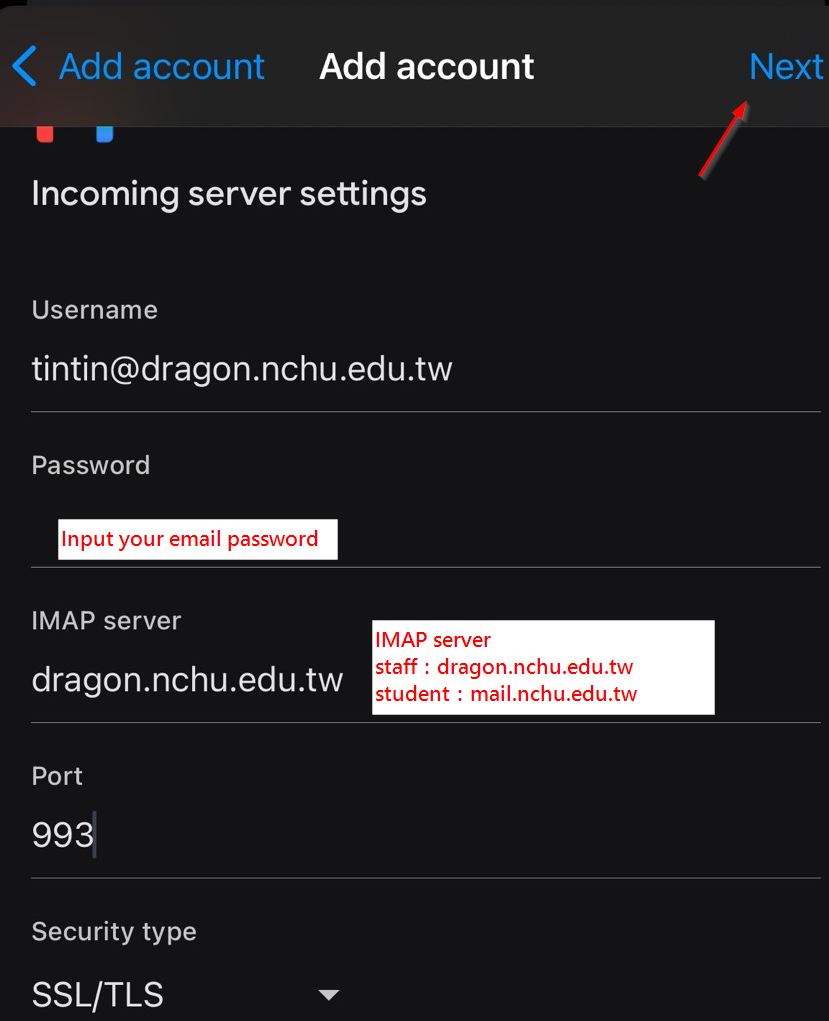
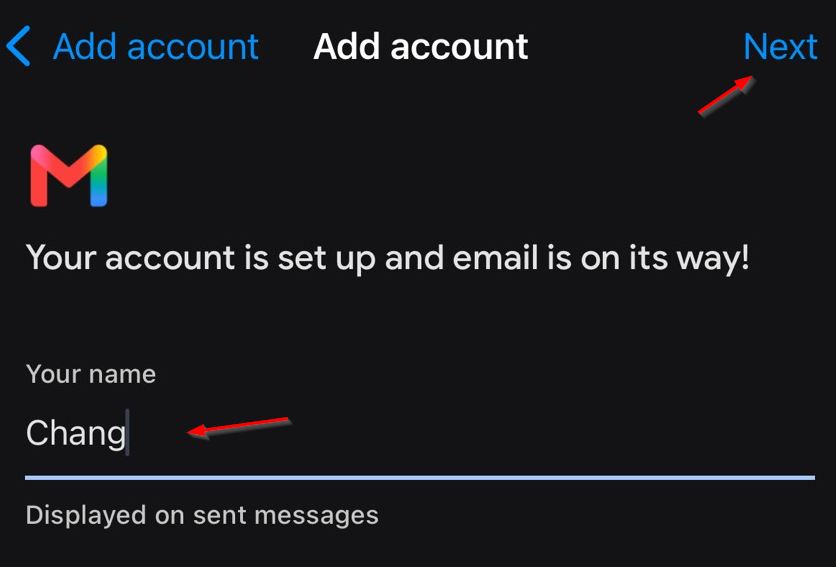
4. Finally, enter the name you want to display when you send the item, and you're done setting it up.
Finally, please note that if you delete emails in Gmail, emails on the school server will also be deleted simultaneously.